Well, before p2 it was pretty easy - one just had to drop updated plug-in into eclipse\plugins directory, and after restart (using -clean) updated plug-in was immediately there. Excelent for testing. Of course what you dropped manually, was then not possible to uninstall using Update Manager.
With p2 there's a few more steps required. If you can't make a feature update (which would be perfect solution), you need a feature patch, that will tell p2 that some plug-ins need an update. It's pretty easy with PDE Create Feature Patch wizard - only two things to take care about:
1. Make sure you know, which feature originally contributes a plug-in that you want to update.
This information can be found in Help>About Eclipse>Feature Details and by pressing "Plug-in details" at the bottom of the window.
2. Be careful with setting the host feature version.
Make sure that host feature version is general enough to work for all your clients. For example, setting version to 4.4.2.v123 won't work for users with feature 4.4.2.v125. Altough feature patch will install without single warning, plug-ins will not be updated. Setting 4.4 instead will work for both 4.4.2.v123 and 4.4.2.v123 as well as any other 4.4.x.x versions.
Does anyone know if feature patches support version ranges?
Bonus: now user can easily install/uninstall the update in p2 UI without messing with files. Yuppi!
Couple more questions: what happens if there's more than one patch for a single feature? What if after applying a patch, feature is updated to version that still matches the patch?
ps. for those who know I don't read Eclipse tips - yes this is Eclipse tip, but while I do at least 1 patch per month, figuring out everything from scratch gets boring after some time :-P
Friday, March 27, 2009

Thursday, March 12, 2009
Do I want too much?
Ubuntu 9.04 turned out to be a proof of concept. Some kind of joke that should not be called OS. Sorry.
Will they finish it before April? Yes.
Will Ubuntu be something that I'd like to use further? I doubt.
Saying that something is finished does not mean that it is really complete. It means that there is no more time left. So Ubuntu 9.04 will be released even if it will be considerably slower than Idle Ibex.
I know exactly what is new in particular Eclipse release, but to gain this knowledge I do need to read new and noteworthy. I do work in Eclipse support.
API is finished when there is no more time left, too. What are the consequences? A lot of compatibility layers. Tons of compatibility code. More API, because we have to maintain old code.
I believe that current division into API and internal code is not sufficient. We need the third kind - the provisional API. But it should be supported by process, not just by commens in the internal code.
Turning provisional API into the real one should not require any refactoring. Provisional API should turn into the real one when it remains unchanged for one Eclipse release and no further work on this is planned (making bug as helpwanted *counts*).
The justification is quite simple - code is adopted after the release, and then no changes can be made. I do not believe that any self-respecting architect is using Eclipse 3.5 for serious development (and replaces necessary libraries every 6 weeks).
So, Eclipse 3.4 is a base for 3.5, and 3.5 feedback will be used for 3.6... But if something is wrong in 3.5 and was not discovered yet there is no chances to remove it. Real adoption of Galileo will show its shortcomings. Some of them will live forever. For sure.
Many people contribute to Eclipse. Would you be able to withdraw the result of your employee 1 year work? Would you?
Eclipse is built from contributions. You cannot require contributors and commiters to be more loyal to Eclipse than for their employees.
But you should do everything what possible to guarantee Eclipse quality and do not allow for becoming yet another "proof of concept".
Regards,
Chris
Will they finish it before April? Yes.
Will Ubuntu be something that I'd like to use further? I doubt.
Saying that something is finished does not mean that it is really complete. It means that there is no more time left. So Ubuntu 9.04 will be released even if it will be considerably slower than Idle Ibex.
I know exactly what is new in particular Eclipse release, but to gain this knowledge I do need to read new and noteworthy. I do work in Eclipse support.
API is finished when there is no more time left, too. What are the consequences? A lot of compatibility layers. Tons of compatibility code. More API, because we have to maintain old code.
I believe that current division into API and internal code is not sufficient. We need the third kind - the provisional API. But it should be supported by process, not just by commens in the internal code.
Turning provisional API into the real one should not require any refactoring. Provisional API should turn into the real one when it remains unchanged for one Eclipse release and no further work on this is planned (making bug as helpwanted *counts*).
The justification is quite simple - code is adopted after the release, and then no changes can be made. I do not believe that any self-respecting architect is using Eclipse 3.5 for serious development (and replaces necessary libraries every 6 weeks).
So, Eclipse 3.4 is a base for 3.5, and 3.5 feedback will be used for 3.6... But if something is wrong in 3.5 and was not discovered yet there is no chances to remove it. Real adoption of Galileo will show its shortcomings. Some of them will live forever. For sure.
Many people contribute to Eclipse. Would you be able to withdraw the result of your employee 1 year work? Would you?
Eclipse is built from contributions. You cannot require contributors and commiters to be more loyal to Eclipse than for their employees.
But you should do everything what possible to guarantee Eclipse quality and do not allow for becoming yet another "proof of concept".
Regards,
Chris
Eclipse Debugger, part VIII
While everyone is waiting for Eclipse 3.5 M6 let's have a look at one of nice features introduces to the debug area in M5 - breadcrumb for the Debug View. Breadcrumb gets activated when Debug view is too small to display its content in the normal way:


 Try it out and check how it can help you in your daily debugging.


 Try it out and check how it can help you in your daily debugging.
Tuesday, February 24, 2009
Eclipse Debugger, part VII
Today I have discovered very nice feature of Eclipse Debugger - it is possible to get rid of the "Source not found" message while debugging. One obvious solution is to add the source to the code that we want to debug, but there are times when we don't have access to the sources of some libraries. In this situation we can use Step Filtering preference:

Now, when we invoke Step Into on a code which is included in this preference it will be treated as Step Over - we won't see the "Source not found" message any more.

Now, when we invoke Step Into on a code which is included in this preference it will be treated as Step Over - we won't see the "Source not found" message any more.
Tuesday, January 27, 2009
Eclipse Debugger, part VI
Recently I've told you about the Expressions view, which allows one to view the values of different expressions. There is also another view, called Display, which can do similar things, but works in a little bit different way.
The Display view is not opened by default in the Debug perspective, so to open it go to Window->Show View->Other->Debug->Display. The UI of this view is rather simple, but it can be very useful, it gives you the possibility to:
The view can be used as a kind of scrapbook, where you can easily enter some elements of code and experiment a little bit while debugging.
The Display view is not opened by default in the Debug perspective, so to open it go to Window->Show View->Other->Debug->Display. The UI of this view is rather simple, but it can be very useful, it gives you the possibility to:
- evaluate any expression and display its value
- execute given expression
- create a watch expression
The view can be used as a kind of scrapbook, where you can easily enter some elements of code and experiment a little bit while debugging.
Friday, January 23, 2009
How to embed GMF into a multipage editor?
Today I have been looking through our blog archive and I have found a draf of a post about embedding GMF into a mulitpage editor. I was very surprised as the post was completed, so I wonder why I hadn't published it back then.
So here it is without any changes (better late then never):
Recently I had to find a way to embed GMF into a multipage editor. I had the experience with GMF, but I didn't know how to create a multipage editor, however, it went pretty easy and straightforward. For this short tutorial I will use the multipage editor example described here and the GMF MindMap example (you can check out the source code from the CVS). What we want to achieve it to embed the GMF editor into the first page of the exemplary multipage editor. If you follow the steps below you should get the desired result.
So here it is without any changes (better late then never):
Recently I had to find a way to embed GMF into a multipage editor. I had the experience with GMF, but I didn't know how to create a multipage editor, however, it went pretty easy and straightforward. For this short tutorial I will use the multipage editor example described here and the GMF MindMap example (you can check out the source code from the CVS). What we want to achieve it to embed the GMF editor into the first page of the exemplary multipage editor. If you follow the steps below you should get the desired result.
- In org.eclipse.ui.examples.multipageeditor project find MultiPageEditorExample class and copy it to the org.eclipse.gmf.examples.mindmap.diagram.part package of org.eclipse.gmf.examples.mindmap.diagram project. There will be some error, but we will take care of them later on.
- In MultiPageEditorExample you will find field private TextEditor editor; change it's type to MindmapDiagramEditor which is the class of GMF editor. Also in the method MultiPageEditorExample#createPage0 change the constructor call for the field editor.
- Let's look now at the errors - they are mostly connected to MessageUtil class, which we simply don't have in our GMF project, however, we need some strings to pass them to the methods - we can put there any string we find appropriate (and later of course we can externalise those strings).
- Now there should be only one error left. To get rid of it we can just comment out the method MultiPageEditorExample#sortWords and every call of this method.
- For this moment we shouldn't see any errors in out diagram project. Now we have to change the editor class that is defined in the plugin.xml of org.eclipse.gmf.examples.mindmap.diagram project. Open the file, go to the Extensions tab, go to org.eclipse.ui.editors and there you should find one entry with the editor definition. Change the class attribute to point to our multipage editor (class MultiPageEditorExample).
- Here it is! You should see the editor semillar to the one on the screenshot below:
 I know that this is the dirty way, but if you need to do this fast, or you don't know how to start then I guess this can be a good starting point.

Tuesday, January 20, 2009
Eclipse Debugger, part V
The third view that is extremely important for me while debugging is the Expressions view. This view allows to monitor the value of (as the name says) any expressions.
How to add expressions?
Just select the expression in the Java editor while debugging and choose Watch option from the context menu. The expression will immediately appear in the Expressions view.
You can also right click in the Expressions view and choose Add Watch Expression... option.
How to edit expressions?
If you have already some expressions added you can easily edit them by right clicking on the expression and choosing Edit Watch Expression.
What is important is that you can put any expression in this view - not only the ones that are in the code - if you want to check some hypothetical value then you can do that!
The are also some other interesting options in the context menu:
In the view's toolbar you will find options to:
How to add expressions?
Just select the expression in the Java editor while debugging and choose Watch option from the context menu. The expression will immediately appear in the Expressions view.
You can also right click in the Expressions view and choose Add Watch Expression... option.
How to edit expressions?
If you have already some expressions added you can easily edit them by right clicking on the expression and choosing Edit Watch Expression.
What is important is that you can put any expression in this view - not only the ones that are in the code - if you want to check some hypothetical value then you can do that!
The are also some other interesting options in the context menu:
- you can copy expressions to the clipboard
- you can remove expressions
- you can look for expressions
- you can enable/disable expressions
- you can reevaluate expressions
In the view's toolbar you will find options to:
- show type names - shows the type names of the evaluated expressions
- show logical structures - while browsing the evaluated value of the expression you can look at its logical structure. e.g. instead of looking into the internals of the Map object:
 you can see the logical structure of the map: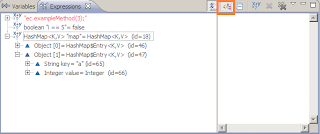
- create new watch expression (the 3rd way to do this)
- remove/remove all expressions from the view


- change the layout
- show constants
- show static variables
- show qualified names
- show null array entries
- show references
Subscribe to:
Posts (Atom)
